Common Motherboard Problems and Solutions (Easy Fixes for Beginners)
A motherboard is like the foundation of a house.
If the foundation has problems, the whole house starts shaking.
Many people face PC issues like:
- PC not turning on
- Black screen
- Random restarts
- USB ports not working
In most cases, the real reason is the motherboard.
In this guide, you will learn common motherboard problems and solutions in very simple English. Each problem is explained with easy fixes, so even beginners can understand and troubleshoot safely.
Motherboard Not Powering On
This is one of the most common motherboard problems.
Symptoms
- PC does not turn on at all
- No lights on motherboard
- No fan movement
Common Causes
- Loose power cables
- Faulty power supply (PSU)
- Dead motherboard
- Short circuit
Simple Solutions
- Check power cables
Make sure:- 24-pin motherboard cable is tight
- 8-pin CPU power cable is connected
- Test the power supply
A faulty PSU can look like a motherboard problem.
If possible, test with another PSU. - Remove extra parts
Disconnect:- GPU
- Extra RAM
- Storage drives
- Look for short circuits
Check for:- Burn marks
- Loose screws touching the board
If nothing works, the motherboard may be dead.
PC Turns On but No Display
Your PC powers on, but the screen stays black.
Symptoms
- Fans spinning
- Lights ON
- No display on monitor
Common Causes
- RAM not seated properly
- GPU not detected
- BIOS or POST error
Simple Solutions
- Reseat the RAM
Remove RAM sticks and insert them again firmly. 🏠 Like fixing a loose bulb in a socket. - Check graphics card
- Remove GPU
- Clean the slot
- Insert again carefully
- Listen for beep codes
Motherboard beep codes help identify problems:- Continuous beeps → RAM issue
- No beep → possible motherboard failure
- Try onboard graphics
If your CPU supports it, remove the GPU and connect display directly to motherboard.
BIOS and CMOS Problems
BIOS controls how your motherboard talks to hardware.
Common BIOS Issues
- PC stuck on boot screen
- BIOS not detecting SSD or RAM
- BIOS update failure
Easy Fixes
- Reset BIOS (Clear CMOS)
You can:- Remove CMOS battery for 5 minutes
- Or use CMOS jumper
- Replace CMOS battery
A weak battery can cause:- Wrong time/date
- Boot errors
- Update BIOS carefully
Only update BIOS if needed.
Wrong BIOS update can damage the motherboard.
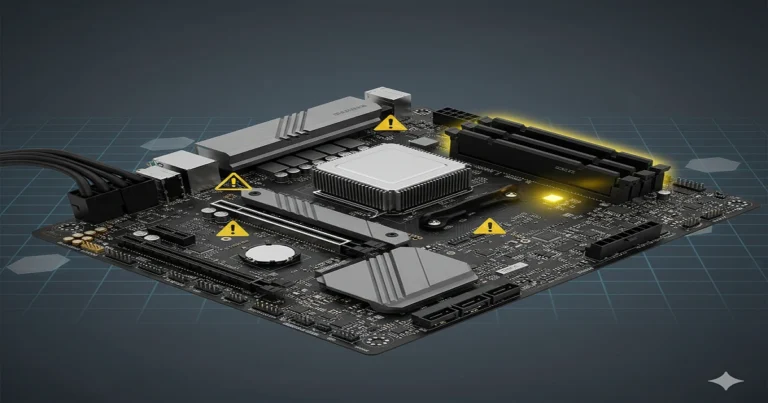
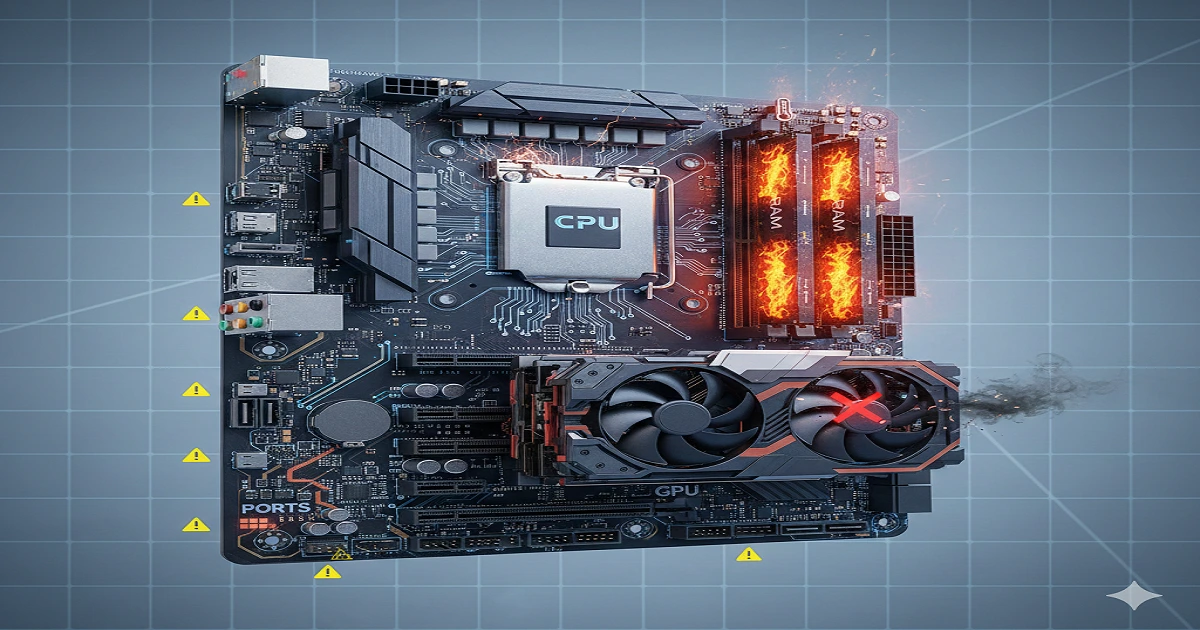
Motherboard Overheating Problems
Heat slowly kills a motherboard.
Symptoms
- Random shutdowns
- System freezing
- High temperature warnings
Common Causes
- Dust buildup
- Poor airflow
- Faulty fans
- VRM overheating
Simple Solutions
- Clean dust regularly
Use compressed air to clean:- Fans
- Heatsinks
- Improve airflow
Make sure:- Front fans pull air in
- Back fans push hot air out
- Check motherboard temperatures
Use tools like BIOS or monitoring software.
RAM and Memory Related Motherboard Issues
RAM problems are often confused with motherboard failure.
Common Issues
- RAM not detected
- PC beeping on startup
- Random crashes
Fixes
- Test RAM one by one
Insert one stick at a time. - Check RAM compatibility
Some motherboards do not support all RAM types. - Clean RAM slots
Dust in slots can cause memory errors.
CPU and Socket Issues
Sometimes the motherboard looks faulty, but the real problem is the CPU or its socket.
Common Symptoms
- CPU not detected
- PC turns on, then shuts down
- Overheating warning
- No display after CPU upgrade
Main Causes
- Bent CPU pins
- Unsupported processor
- BIOS not updated for new CPU
Simple Solutions
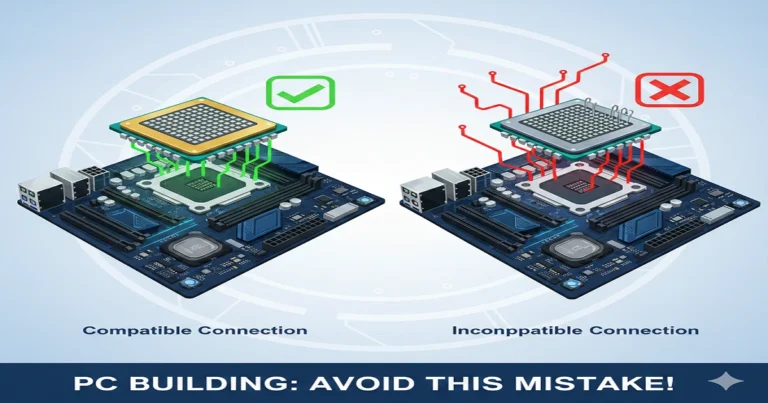
- Check CPU compatibility
Always confirm:- CPU model is supported
- BIOS version supports the CPU
- Inspect CPU pins carefully
Bent pins can stop the motherboard from working. - Reinstall CPU properly
Make sure:- CPU is aligned correctly
- Cooler is not too tight
- Update BIOS if needed
Only update BIOS before installing a new CPU, not after problems start.
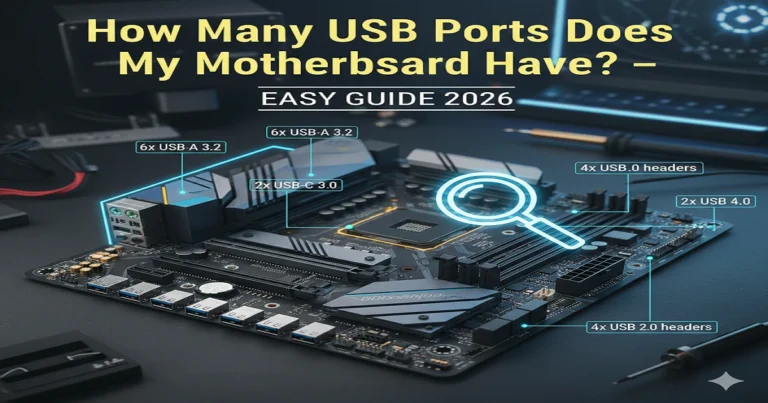
USB, Audio, and LAN Port Problems
When ports stop working, users think the motherboard is dead — but often it’s fixable.
Common Symptoms
- USB ports not working
- Audio jack not detecting headphones
- Ethernet (LAN) not detected
Common Causes
- Driver issues
- Disabled ports in BIOS
- Physical port damage
Easy Fixes
- Check BIOS settings
Make sure:- USB ports are enabled
- LAN controller is ON
- Update chipset and USB drivers
Old drivers cause many motherboard issues. - Test different ports
If only one port fails, it’s not a full motherboard failure. - Inspect I/O panel
Bent pins or dust can block connections.
Storage Drive Not Detected (SSD / HDD / M.2)
Another very common motherboard problem is storage not showing up.
Symptoms
- SSD not detected
- Boot drive missing
- Windows not installing
Common Causes
- Loose SATA cable
- Disabled storage controller
- M.2 slot conflict
Simple Solutions
- Reconnect storage cables
Replace SATA cables if possible. - Check BIOS storage settings
Make sure:- SATA mode is correct
- NVMe support is enabled
- Try another port or slot
Some M.2 slots disable SATA ports automatically. 🏠 Like switching rooms when one light socket fails. - Update BIOS firmware
Helps detect newer SSDs.
Physical and Electrical Damage
Some motherboard problems cannot be fixed at home.
Signs of Serious Damage
- Burn marks
- Swollen capacitors
- Strong burning smell
- PC damaged after power surge
Causes
- Power surges
- Water damage
- Short circuits
- Poor-quality PSU
What You Can Do
- Visual inspection
Look for:- Burnt areas
- Corrosion
- Do not power on repeatedly
This can cause more damage. - Decide repair or replacement
In many cases, replacement is safer and cheaper.
How to Diagnose Motherboard Problems (Beginner Method)
Follow this simple checklist before replacing your motherboard:
- Remove all non-essential components
- Test RAM one by one
- Clear CMOS
- Check PSU
- Look for physical damage
- Test with minimal setup
🧠 Like checking electricity, gas, and water before calling a house technician.
How to Prevent Motherboard Problems
Prevention is better than repair.
Most motherboard problems happen due to poor care.
Easy Prevention Tips
- Clean your PC regularly
Dust blocks airflow and causes overheating. 🏠 Like cleaning ceiling fans at home to avoid heat. - Use a surge protector
Power surges can destroy a motherboard in seconds. - Ensure proper airflow
- Use intake and exhaust fans
- Do not block air vents
- Handle components carefully
Static electricity can damage motherboard circuits. - Avoid unnecessary BIOS updates
Update BIOS only when required. - Use a quality power supply (PSU)
A cheap PSU can slowly damage your motherboard.
FAQs About Motherboard Problems and Solutions
How do I know if my motherboard is failing?
Common signs include no power, no display, random shutdowns, USB ports not working, and frequent system crashes.
Can a motherboard be repaired?
Minor issues like BIOS problems or loose connections can be fixed. Physical damage usually requires replacement.
What causes motherboard failure?
Overheating, power surges, poor-quality PSU, dust buildup, and liquid damage are the main causes.
Is it better to repair or replace a motherboard?
If repair cost is high or damage is physical, replacing the motherboard is usually the better option.
Can a bad motherboard damage other parts?
Yes. A faulty motherboard can damage RAM, CPU, or storage over time.
Final Thoughts
The motherboard is the heart of your computer.
When it fails, the entire system suffers.
By understanding these common motherboard problems and solutions, you can:
- Save repair costs
- Avoid unnecessary replacements
- Fix small issues at home
Always start with simple checks before assuming the motherboard is dead.
👉 Treat your motherboard like the foundation of your house — keep it clean, cool, and protected.