Are All Processors Compatible with All Motherboards? – 2026
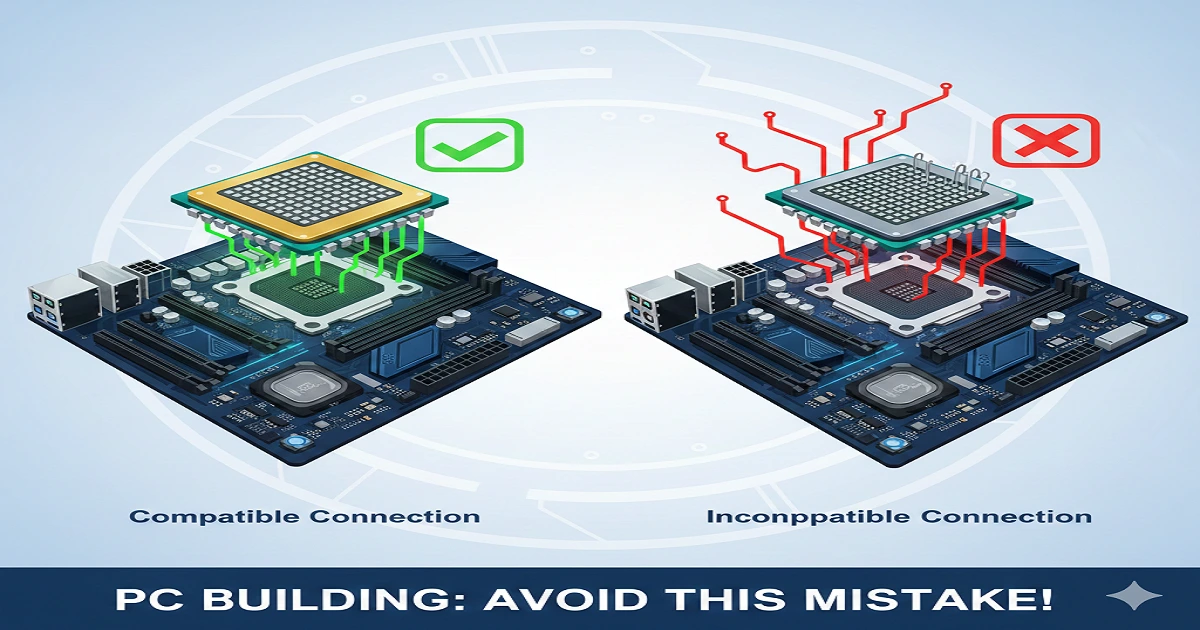
No, all processors are compatible with all motherboards. CPU compatibility depends on brand, socket type, chipset, and BIOS version. Using the wrong CPU can damage your PC or prevent it from booting. Always check your motherboard’s CPU support list.
Many people assume any CPU can work with any motherboard, but that’s not true. Every motherboard has a specific brand, socket type, and chipset it supports. Installing an incompatible processor can stop your PC from working or even damage the hardware. Knowing which CPUs match your motherboard ensures smooth performance, easy upgrades, and a longer PC lifespan. In this guide, we will explain how to check CPU and motherboard compatibility, what to look for in sockets and chipsets, and simple steps to avoid mistakes. By the end, you’ll confidently choose the right CPU for your motherboard.
Understanding CPU and Motherboard Compatibility
What Is a Motherboard?
A motherboard is the main circuit board in your PC. It connects all your components, including the CPU, RAM, storage, and graphics card. The motherboard controls communication between these parts and provides power. Choosing the right motherboard ensures your PC can handle your processor, memory, and other hardware efficiently.
What Is a Processor (CPU)?
The CPU, or processor, is the brain of your computer. It handles all instructions and processes, running programs, games, and operating systems. Popular CPU brands are Intel and AMD, each with different architectures and requirements. Matching the CPU with a compatible motherboard is essential to avoid damage and performance issues.
Key Factors Affecting Compatibility
Brand Compatibility (Intel vs AMD)
CPUs are brand-specific. An Intel CPU will only work on Intel motherboards, while an AMD CPU requires an AMD motherboard. Mixing brands will never work and can damage components. Always match your CPU brand with the motherboard brand.
Socket Type and CPU Generation
The socket is the physical interface where the CPU fits into the motherboard. Popular sockets include LGA 1700 for Intel and AM4/AM5 for AMD. Each socket supports specific CPU generations. For example, AM4 supports Ryzen 3000–5000, while LGA 1700 supports 12th–14th Gen Intel CPUs. Using a CPU with the wrong socket is physically impossible.
LGA vs PGA:
- LGA (Land Grid Array): Pins on the motherboard socket, CPU has contact pads.
- PGA (Pin Grid Array): Pins on the CPU, socket has contact pads.
Matching the correct type is critical.
Motherboard Chipset
The chipset controls communication between the CPU and other components. Different chipsets offer varying features and support different CPU generations. Intel chipsets include B, H, Z series, while AMD has A, B, X series. Newer chipsets may require a BIOS update to support older or newer CPUs. Always check the motherboard’s chipset specifications.
How to Check CPU Compatibility With a Motherboard
Manufacturer CPU Support List
Most motherboard manufacturers like ASUS, MSI, and Gigabyte provide a CPU support list. It shows all CPUs compatible with your motherboard, including required BIOS versions. Always check this list before purchasing.
Using Online Tools
You can use online tools to simplify the process:
- Intel Compatibility Tool
- AMD Compatibility Tool
- PCPartPicker – helps avoid conflicts by showing compatible CPU–motherboard pairs
Checking BIOS Version
Sometimes a motherboard requires a BIOS update to support a new CPU. Many boards now have BIOS Flashback, allowing updates without an existing CPU installed. Always follow the manufacturer’s instructions carefully.
Common Myths and Mistakes
Myth 1 — “Any CPU fits any motherboard”
This is false. CPU brand, socket, and chipset must match. Ignoring this can prevent the PC from booting.
Myth 2 — “Motherboards automatically support new CPUs”
New CPUs may not be supported by older motherboards without a BIOS update. Always verify before upgrading.
Common Mistakes Beginners Make
- Ignoring socket type
- Skipping BIOS updates
- Trying to use an Intel CPU on an AMD motherboard
Tips for Choosing the Right CPU and Motherboard
Determine Your Budget and Usage
Decide if you need a PC for gaming, content creation, streaming, or basic use. High-performance CPUs like Intel Core i9 or AMD Ryzen 9 require higher-end motherboards. Entry-level users can use budget-friendly CPUs with compatible boards.
Check Compatibility Before Buying
Always verify:
- Brand compatibility
- Correct socket
- Supported chipset
- BIOS version requirements
Future-Proofing Your Build
Choose motherboards that support upcoming CPU generations. Features like BIOS Flashback allow upgrades without additional hardware. This saves money and keeps your PC relevant for years.
Frequently Asked Questions (FAQs)
How do I know if a CPU is compatible with my motherboard?
Check your motherboard’s CPU support list on the manufacturer’s website. Verify the CPU brand, socket type, chipset, and BIOS version. Tools like PCPartPicker can help you match a CPU with compatible motherboards easily.
Can any processor work with any motherboard?
No. A processor only works with motherboards that share the same brand, socket, and chipset compatibility. Using the wrong combination can prevent your PC from starting or even damage the CPU or motherboard.
Can I use a 7th gen CPU in a 9th gen motherboard?
Usually not. CPU generations often require different sockets and chipsets. A 7th gen CPU may not fit a 9th gen motherboard physically or may be unsupported by the motherboard’s chipset and BIOS.
What happens if you put an incompatible CPU in a motherboard?
An incompatible CPU may not fit physically, fail to boot, or cause hardware damage. Pins may bend, circuits may short, or the system may not recognize the CPU. Always check brand, socket, chipset, and BIOS before installation.
Conclusion:
Not all processors are compatible with all motherboards. Compatibility depends on CPU brand, socket type, chipset, and generation. Ignoring these factors can lead to hardware damage, performance issues, or a non-functioning PC. Always check the motherboard manufacturer’s CPU support list, confirm BIOS requirements, and use online tools like PCPartPicker for guidance. Choosing the right CPU–motherboard combination ensures stable performance, future upgradability, and longer lifespan for your system. With careful selection and verification, you can avoid mistakes, save money, and build a PC that perfectly meets your gaming, streaming, or productivity needs.