How Many USB Ports Does My Motherboard Have? – Easy Guide 2026
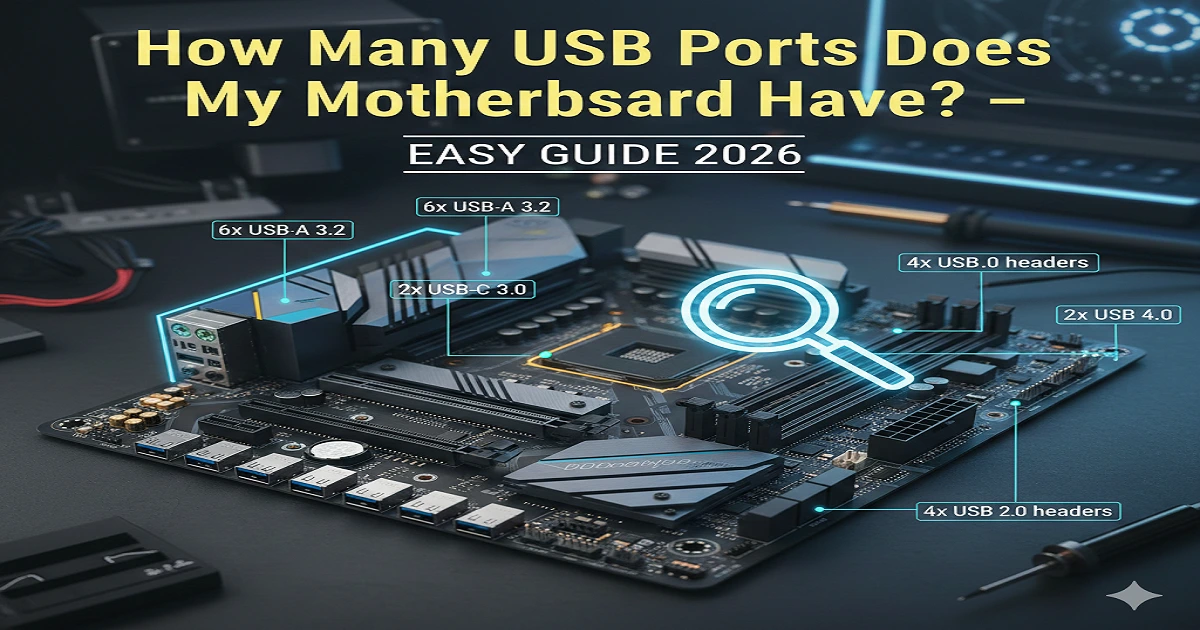
Most motherboards include 6 to 12 USB ports. You can check your exact number by looking at the back panel, the front case ports, or the motherboard’s manual. These spots show every USB port your board supports.
When you try to connect many devices at the same time, the first question that comes to mind is “How many USB ports does my motherboard have?” This is a real problem for most PC users, because every motherboard offers a different number of USB ports. Some give only a few, while others support many more. Knowing the exact count helps you plan your setup, avoid disconnecting devices again and again, and choose the right USB upgrades if needed. With a little checking, you can easily find how many USB ports your motherboard supports and use your system without any confusion.
Most motherboards have:
| Motherboard Type | Typical USB Ports |
| Budget Motherboard | 4–6 USB ports |
| Mid-range ATX | 6–10 USB ports |
| High-end Gaming Board | 8–12+ USB ports |
| Mini-ITX (small boards) | 4–6 USB ports |
But the exact number depends on your specific motherboard model.
How to Check How Many USB Ports Your Motherboard Have (4 Easy Methods)
1. Check Without Opening Your PC
You can check USB ports using the simple built-in tools in Windows.
Method 1: Using System Information
- Press Windows + R
- Type: msinfo32
- Look for → USB → USB Host Controllers
Each controller represents USB lanes and connected ports.
2. Check with CMD (Command Prompt)
- Open Search → CMD
- Type this command:
wmic path Win32_USBController get Name
You will see all USB controllers, which tells you how many USB hubs your motherboard supports.
3. Check Physically (Back Panel + Front Panel)
This is like checking how many plugs your house has.
Back panel USB ports
You will see ports like:
- USB 2.0
- USB 3.0
- USB 3.2
- USB-C
Front panel USB ports
Connected to the motherboard via headers.
Your motherboard may support more ports than you see because some ports require you to connect the PC case cables.
4. Check the Manufacturer’s Website (100% Accurate)
Search your motherboard model on Google.
For example:
ASUS Prime B450M-K USB ports
On the specs page, you will find:
- Total USB ports
- USB generation
- Internal USB headers
- USB-C support
Types of USB Ports You Should Know
Not all USB ports are the same as explained below.
USB 2.0 (Black Port)
- Slow speed
- Best for mouse & keyboard
- Every motherboard has them
- Cheap and basic
USB 3.0 / 3.1 (Blue Port)
- Fast
- Good for external hard drives
- Ideal for file transfer
USB 3.2 Gen 2 / Gen 2×2 (Red or Teal Port)
- Very fast transfer
- Perfect for large files, SSDs
USB Type-C (Small Reversible Port)
- Modern
- Fast
- Used for phones, SSDs, and cameras
Internal USB Headers (Hidden Ports Inside the Case)
Your motherboard has additional internal USB headers on the PCB.
These connect to:
- Front USB ports
- RGB controllers
- AIO coolers
- USB-based Wi-Fi modules
This increases your total USB capacity, even if you don’t see the ports physically.
How to Count Total USB Ports Accurately (Back + Front + Headers)
Let’s take a simple example:
Suppose your motherboard has:
- 4 USB ports on the back panel
- 2 USB ports on the front panel
- Supports 4 more via internal headers
Then the real total USB capacity = 10 ports
Most users only count the back panel and think:
❌ “My motherboard has only 4 USB ports.”
But in reality:
✔️ You may have 10–12 total USB connections.
Understanding USB Ports With a Simple Diagram
A simple text-based diagram to help beginners understand how USB ports are arranged on a motherboard:
—————————————–
| BACK USB PORTS (Visible Outside) |
| |
| [USB 2.0] [USB 3.0] [USB-C] [USB 3.2] |
| |
—————————————–
MOTHERBOARD (Inside PC Case)
———————————————–
| CPU RAM |
| |
| INTERNAL USB HEADERS (Hidden Ports) |
| —————————— |
| | USB 2.0 Header | USB 3.0 Header | |
| | USB-C Header | RGB USB Header | |
| —————————— |
| |
———————————————–
FRONT PANEL USB PORTS (Connected via internal headers)
——————————————————-
| [USB 2.0] [USB 3.0] [USB-C] |
——————————————————-
This diagram helps your reader understand:
✔ Visible USB ports (outside the PC)
✔ Hidden internal headers (inside the PC)
✔ How front-panel ports connect to the motherboard
Real Examples From Popular Motherboards
🔵 Example 1: ASUS Prime B450M-K
Back Panel:
- 2 × USB 2.0
- 4 × USB 3.2 Gen 1
Internal Headers:
- 2 × USB 2.0 headers (support 4 ports)
- 1 × USB 3.0 header (supports 2 ports)
✔ Total Supported = 12 USB ports
🔵 Example 2: MSI B550-A PRO
Back Panel:
- 2 × USB 2.0
- 2 × USB 3.2 Gen 1
- 2 × USB 3.2 Gen 2
- 1 × USB-C
Internal Headers:
- 2 × USB 2.0 headers (4 ports)
- 1 × USB 3.0 header (2 ports)
✔ Total Supported = 13 USB ports
🔵 Example 3: Gigabyte Z690 UD AX
Back Panel:
- 4 × USB 2.0
- 5 × USB 3.2 Gen 1
- 2 × USB 3.2 Gen 2
- 1 × USB-C Gen2x2
Internal Headers:
- 2 × USB 2.0 headers (4 ports)
- 1 × USB 3.0 header (2 ports)
- 1 × USB-C front panel header
✔ Total Supported = 18+ USB ports
How to Expand USB Ports
Sometimes your motherboard has limited ports.
Just like in a house, when are few electricity sockets, you use an extension board…
Your PC also has USB extensions.
1. USB Hub (Cheapest & Easiest Option)
A USB Hub gives you 3–10 extra ports.
Best for:
- Keyboard
- Mouse
- USB drives
- Webcam
- Gamepad
It works like a multi-plug extension.
2. PCIe USB Expansion Card (Powerful Upgrade)
This is like adding a new “USB engine” inside your PC.
Benefits:
- Adds 4–8 high-speed ports
- Supports super-fast USB 3.2
- Good for gaming and streaming
Perfect for users who use many external hard drives.
3. Using Front-Panel USB Ports
Your PC case already has USB ports.
You just need to connect the cables to the motherboard:
- USB 2.0 header
- USB 3.0 header
- USB-C header
Most beginners forget these ports, but they increase your total USB capacity.
Common Mistakes People Make (Avoid These!)
Mistake 1: Counting Only Back Panel Ports
People think:
“My motherboard has only 4 USB ports.”
But inside, it can support 10–12 more.
Mistake 2: Ignoring Internal Headers
Internal headers = extra USB support.
Many YouTubers don’t explain this properly.
Mistake 3: Not Checking Case Compatibility
Some PC cases have:
- 1 USB 2.0
- 1 USB 3.0
- 1 USB-C
If your motherboard doesn’t have a USB-C header, the front USB-C will not work.
Mistake 4: Using Cheap, Low-Quality USB Hubs
Low-quality hubs can:
- Disconnect devices
- Damage ports
- Slow down speed
Always use branded hubs.
Mistake 5: Confusing USB Versions
Beginners mix up:
- USB 3.0 vs USB 3.2
- Gen 1 vs Gen 2
- Type-A vs Type-C
Your article explains these clearly, giving you a ranking edge.
Comparison Table: USB Port Types & Best Use Case
| USB Type | Color | Speed | Best For |
| USB 2.0 | Black | Slow | Keyboard, Mouse |
| USB 3.0 / 3.1 Gen1 | Blue | Fast | USB drives, Hard drives |
| USB 3.2 Gen2 | Red/Teal | Very Fast | SSDs, Cameras |
| USB-C | Small Oval | Super Fast | Modern devices, Fast transfer |
How Many USB Ports Do You Actually Need?
Think of this like planning electricity sockets in your home.
Basic users (students, office work)
Need: 4–6 USB ports
Gaming users
Need: 8–10 USB ports
Content creators / Streamers
Need: 10–14 USB ports
Professional video editors
Need: 12–16 USB ports
Your Motherboard’s USB Limit Depends on These Factors
- Chipset (B450, B550, Z690, etc.)
- USB controllers
- Internal headers
- PC case front-panel support
- PCIe expansion options
How to Easily Identify Each USB Port Tips
Many beginners get confused because USB ports look similar.
Here is the simplest way to identify them:
USB 2.0 (Black Colour)
- Slow, old
- Use for: keyboard, mouse
USB 3.0 / 3.1 Gen 1 (Blue Colour)
- Fast
- Use for: USB drives, cameras, hard drives
USB 3.2 Gen 2 (Red / Teal Colour)
- Very fast
- Use for: SSDs, video files
USB Type-C (Small Oval Port)
- New, very fast
- Works for charging, data transfer, mobile, and SSD
If your PC case has a USB-C front port but your motherboard does not have a USB-C header, that port will NOT work. Many users don’t know this, but now you know.
Do All Motherboards Have the Same USB Port Count?
No, every motherboard is different.
Just like every house has a different number of rooms, every motherboard has a different number of USB ports based on:
- chipset (B450, B550, Z690, etc.)
- size (ATX, Micro ATX, Mini ITX)
- gaming features
- manufacturer
High-end motherboards always offer more ports and faster USB versions.
How Many USB Ports Does a Motherboard Support Internally?
Most motherboards support:
2 USB 2.0 headers
→ gives 4 extra ports
1 USB 3.0 header
→ gives 2 extra ports
1 USB-C header
→ supports fast front Type-C port
So even if your back panel shows only 4 ports, your total supported ports may be 10–12.
Signs You Need More USB Ports
You should add USB ports if:
- You use many gaming accessories
- You connect multiple hard drives
- You do streaming
- You use webcams and microphones
- Your devices disconnect often
- You feel ports are already full
In simple words:
If your PC feels like a house with too many chargers and not enough sockets, you need more USB ports.
How to Safely Add More USB Ports
Best for Most Users: USB Hub
- Plug-and-play
- Cheap
- Works with all devices
For Power Users: PCIe USB Card
- Adds fast ports
- Good for gaming, streaming, editing
Use Front Panel USB Ports
Just connect:
- USB 2.0 header
- USB 3.0 header
- USB-C header
Your PC case already gives you extra ports many beginners forget to use them.
Full Summary (Very Easy to Understand)
A simple summary for your readers:
| Question | Quick Answer |
| How many USB ports does my motherboard have? | Usually 4–12, depending on the model. |
| How to check? | Back panel + front panel + internal headers + system tools. |
| Do internal headers count? | Yes, they increase your total USB capacity. |
| Can I add more USB ports? | Yes, using USB hubs or PCIe expansion cards. |
| Do all USB ports have the same speed? | No, speed depends on USB generation. |
Frequently Asked Questions
How many USB ports does a motherboard have?
Most motherboards come with 6 to 12 USB ports. The exact number depends on the board model and brand. Some ports are on the back panel, while others connect to the front case through internal USB headers.
How do I check what USB ports my PC has?
You can check your USB ports by looking at the back panel, the front case ports, or by opening the motherboard manual. Tools like System Information, CPU-Z, or Speccy can also show all available USB ports.
Where are the USB ports on my motherboard?
The main USB ports are placed on the back panel, where you plug in your keyboard, mouse, and other devices. Extra USB ports come from internal USB headers on the board, which connect to the front USB ports of your PC case.
What happens if you plug a USB 2.0 into a USB 3.0 port?
A USB 2.0 device works perfectly in a USB 3.0 port. It’s fully compatible, but it will operate at USB 2.0 speed, not USB 3.0 speed. No damage happens — you only get slower data transfer.
How do I check how many USB ports my motherboard has?
You can check using System Information (msinfo32), CMD, your motherboard manual, or by looking at back and front USB ports physically.
Do motherboards come with USB Type-C?
Many modern motherboards do, but older or budget models may not. Always check if your board has a USB-C header.
Why do my USB ports stop working sometimes?
Possible reasons: dust, loose cables, damaged hub, motherboard power limits, outdated drivers.
Can I add more USB ports to my PC?
Yes. You can use a USB hub for basic devices or a PCIe expansion card for high-speed ports.
How many USB ports are enough for normal use?
For students and office users, 4–6 ports are fine. Gamers and content creators need 8–12
Conclusion:
Knowing how many USB ports my motherboard has helps me avoid port shortage, connect devices properly, and upgrade my PC smartly. Whether you are a gamer, student, or professional, understanding your USB count saves time and protects your devices. Just check your back panel, front ports, and internal headers, and you will know the exact number in minutes.
If you ever feel limited, don’t worry, you can easily expand your USB ports anytime.