
How to Check What Ram Is Compatible With My Motherboard
If your computer feels slow, freezes often, or crashes during work, your RAM and motherboard compatibility might be the reason. Many people buy new RAM hoping to speed things up but end up with parts that don’t fit or work together.
If you want to upgrade your computer, the first question is “How to Check What RAM Is Compatible With My Motherboard.” Choosing the wrong RAM can make your PC not start or run slowly. Every motherboard only works with certain RAM types, speeds, and maximum sizes. In this guide, I will show you simple ways to check your motherboard model and find the right RAM. You will learn step-by-step how to read the specifications, understand RAM limits, and pick memory that fits perfectly. Following these steps ensures your computer works fast, safely, and trouble-free.
Understanding RAM Types
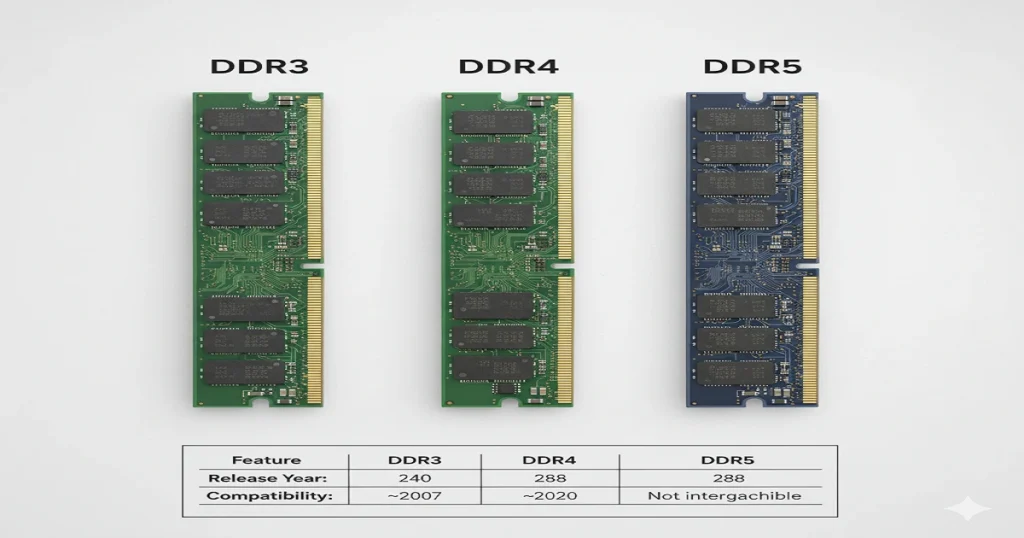
RAM, or Random Access Memory, is what your computer uses to store temporary data while running programs. The more compatible and faster your RAM, the smoother your system runs.
There are several RAM generations:
| RAM Type | Released Year | Common Use | Pin Count (DIMM) |
| DDR2 | 2004 | Very old systems | 240 |
| DDR3 | 2007 | Budget PCs | 240 |
| DDR4 | 2014 | Modern desktops/laptops | 288 |
| DDR5 | 2020 | Latest high-end PCs | 288 |
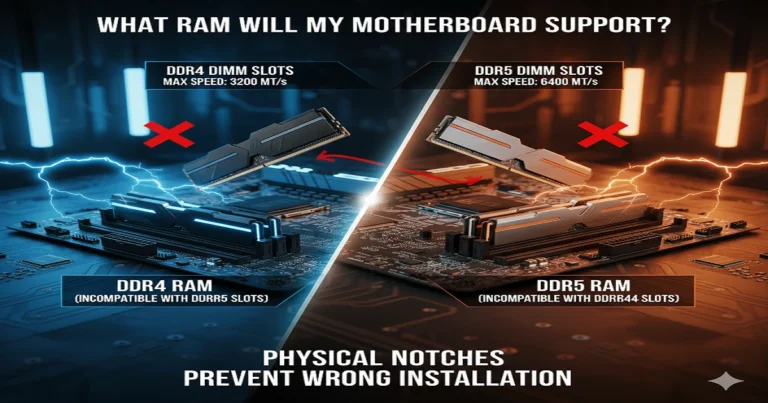
Each generation has a different notch layout, so it physically won’t fit into the wrong slot.
Also, RAM has two form factors:
- DIMM for desktop computers.
- SODIMM for laptops (smaller and shorter).
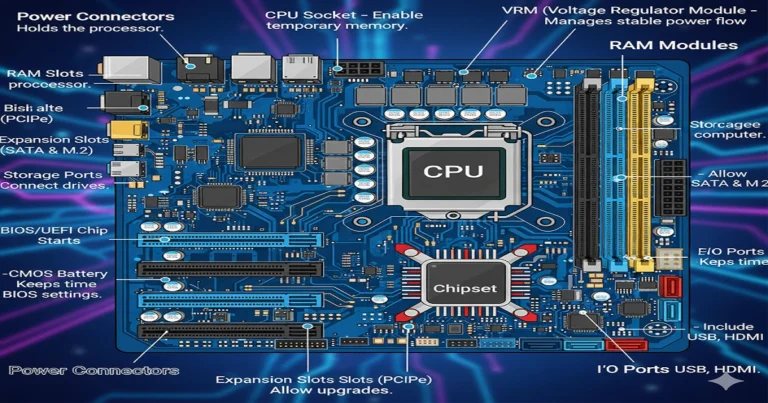
Learn more about motherboard design and how memory connects to it here → Motherboard Components and Functions.
Identifying Your Motherboard Model
Before buying new RAM, you must know the exact motherboard model. Here’s how you can check it easily:
- Look on the motherboard—inside your PC case, you’ll find the model printed near the CPU socket. Example: ASUS PRIME B550M-A or MSI B450 TOMAHAWK.
- Use CPU-Z software—free software that shows the manufacturer, chipset, and BIOS version.
- Windows System Info—Press Windows + R, type msinfo32, and check the “BaseBoard Product.”
Once you find the name, write it down—you’ll need it to check your supported RAM list later.
If you’d like to know more about how motherboards work, see → What Is a Motherboard.
Checking Motherboard Specifications
Now, go to your motherboard brand’s official website—for example, ASUS, MSI, Gigabyte, or ASRock—and open the Support or Specifications page.
Look for the following details:
- Memory Type: DDR3, DDR4, or DDR5.
- Maximum Capacity: Example: “Supports up to 128GB.”
- Supported Speeds: e.g., DDR5-5600 or DDR4-3200 MHz.
- Number of Slots: Usually 2 or 4.
- Dual Channel Support: Improves performance when using 2 identical RAM sticks.
You can also check the QVL (Qualified Vendor List) on the same page. This list shows all RAM models tested and confirmed to work perfectly with your motherboard.
To explore the basics of motherboard compatibility, visit ‘Is Baseboard the Same as Motherboard?‘ →.
Using Online Compatibility Tools
If checking specs manually feels confusing, don’t worry—several online tools make it easy:
- Crucial System Scanner: Automatically checks your system and suggests compatible RAM kits.
- Corsair Memory Finder: Lets you search by motherboard or laptop model.
- Kingston Memory Configurator: Gives you tested and guaranteed compatible modules.
All you have to do is enter your motherboard model, and the site shows you exactly which RAM works best.
Understanding RAM Slots and Configuration
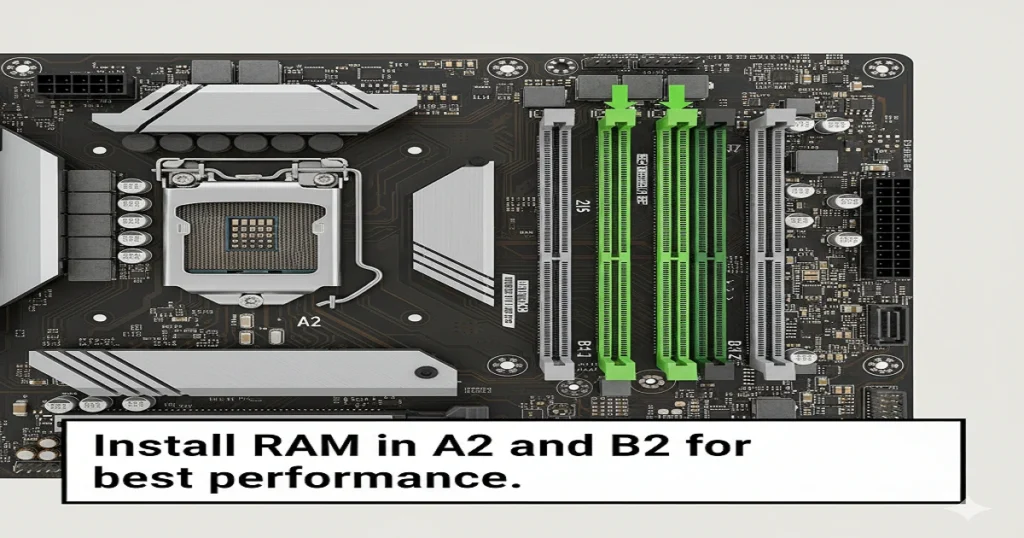
Every motherboard has RAM slots—usually two or four. These slots are where the RAM sticks go.
Here’s what you should know:
- If your board has 4 slots, always fill A2 and B2 first (check your manual).
- Dual-channel mode works best when you install two identical RAM sticks.
- Mixing different sizes or speeds may still work, but at a lower speed.
For example, if you combine a 16GB 3200MHz stick with an 8GB 2400MHz stick, the system will run both at 2400MHz.
For more on motherboard slot layout, read What Are Motherboards?
Factors to Consider When Choosing RAM
When shopping for new RAM, consider these important factors:
- Capacity: for normal tasks, 16GB is great. Gamers should aim for 32 GB, while professionals can go for 64 GB+.
- Speed (MHz): The higher the MHz, the faster your system handles tasks. Example: DDR4-3600 is faster than DDR4-2666.
- Latency (CL): Lower CL = faster response. For example, CL16 is quicker than CL18.
- Voltage: Make sure it matches your motherboard support (like 1.2V or 1.35V).
- Type: DDR4 or DDR5—your board’s manual will tell you.
- Form Factor: DIMM for desktops, SODIMM for laptops.
- Brand: Stick with trusted names like Corsair, Crucial, Kingston, or G.Skill.
You can learn more about picking the right RAM type at → What RAM Will My Motherboard Support.
Common Compatibility Issues
Sometimes, RAM won’t work even if it fits. Here are common problems:
- Mixing different DDR types (DDR3 vs DDR4).
- Motherboard BIOS not updated.
- Different RAM sizes or speeds running together.
- Using RAM with unsupported voltage or frequency.
- Using desktop RAM in a laptop or vice versa.
If your PC doesn’t start after installation, remove the RAM and reinsert it correctly, or reset the BIOS.
Upgrading RAM: Best Practices
When you’re ready to install, follow these safe steps:
- Shut down and unplug your computer.
- Ground yourself by touching metal to avoid static damage.
- Open your case and locate the RAM slots.
- Line up the RAM notch with the slot and press down until the clips snap.
- Turn on your PC and check if it detects the full amount.
- Open BIOS and ensure the speed and channel mode are correct.
- Use MemTest86 or Windows Memory Diagnostic to check stability.
Doing it right ensures smooth performance and avoids system errors later.
FAQs
Can I put 3200 MHz RAM in a 2400 MHz motherboard?
Yes, in most cases you can—but it will run at 2400 MHz.
- RAM is backward-compatible as long as it is the correct type (DDR3, DDR4, or DDR5).
- A 2400 MHz motherboard will automatically limit the RAM to 2400 MHz, even if the stick can go faster.
- It will not damage anything.
Important:
You must use the right DDR generation.
- DDR4 RAM works only in DDR4 motherboards.
- DDR5 RAM works only in DDR5 motherboards.
- They are not cross-compatible.
How to check if the motherboard is DDR3 or DDR4?
You can check in several ways:
Option A: Look up your motherboard model
- Find the model name printed on the board (e.g., “ASUS B450M-A”).
- Search for the specifications—the RAM type will be listed as DDR3, DDR4, or DDR5.
Option B: Read markings near the RAM slots
Some boards have labels like
- “DDR3”
- “DDR4”
- “DDR5”
Option C: Use system tools (Windows)
- Press Ctrl + Shift + Esc → Task Manager
- Go to Performance → Memory
- Look at “Form factor” and “Speed.”
- If it says something like 2133–3200 MHz → DDR4
- If it says 1066–1600 MHz → DDR3
(Windows won’t explicitly say the DDR version, but the speeds give clues.)
Is all DDR4 RAM compatible?
Mostly yes—but with some limits.
All DDR4 RAM fits all DDR4 motherboards physically, but compatibility can depend on:
Motherboard support
- Some boards don’t support very high speeds (e.g., 4266 MHz).
- They will downclock the RAM or may refuse to boot.
Maximum capacity
- Motherboards have limits (e.g., max 32GB per slot or max 64–128GB total).
ECC vs non-ECC
- Most consumer boards support non-ECC DDR4 only.
- ECC DDR4 works only in motherboards that explicitly support ECC.
Height/clearance
- Large RAM heatsinks may not fit under big CPU coolers.
But if it’s normal desktop DDR4, non-ECC, it will almost always work.
How to check the RAM type in a motherboard?
Method 1: Look at the RAM currently installed
Use CPU-Z (free tool):
- Install CPU-Z
- Go to the Memory tab
- Look at “Type”:
- DDR3
- DDR4
- DDR5
Method 2: Check the motherboard manual/spec sheet
Search your motherboard model online → look for the Memory or RAM section.
Method 3: Check the RAM stick label
RAM sticks usually have a sticker that says:
- DDR3
- DDR4
- DDR5
Plus their speed (e.g., 2400, 3200).
Method 4: Windows Task Manager (indirect)
Press Ctrl + Shift + Esc → Performance → Memory.
The listed speed can hint at DDR type.
Conclusion:
Finding what RAM is compatible with your motherboard is not hard once you know what to check.
Start by finding your motherboard model, then look at its supported RAM type, size, and speed.
You can also use free tools like Crucial System Scanner, Corsair Memory Finder, or Kingston Configurator to make it even easier.
Choosing the right RAM means your computer will run faster, stay stable, and last longer.
Take a few minutes to read the manual, match the correct DDR generation (DDR4 or DDR5), and install the sticks in the right slots for the best speed.