What Is a Motherboard – 2026 Ready: AI PCs, Next-Gen Gaming & Future-Proofing
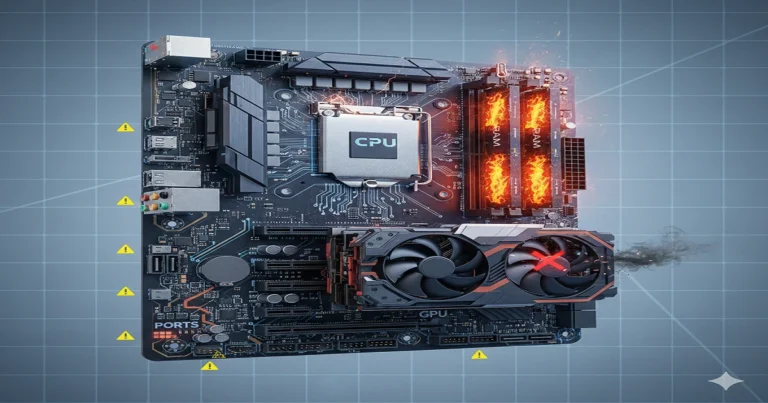
A motherboard is your computer’s main circuit board. It’s the central hub where all your key parts like the CPU, RAM, and GPU connect and communicate. For future AI PCs and gaming, a modern motherboard ensures all these components work together at top speed for a smooth, powerful experience.
Are you confused about what a motherboard really does?
Let’s make it simple. Think of the motherboard as the computer’s main backbone. It’s that big circuit board inside your PC where everything connects. Your processor, your RAM, your storage they all plug into this one board. Its main job is to let all these parts talk to each other and work as a team. If you pick a good, modern motherboard, you are building a strong foundation for a fast computer that will last you for years.
Your motherboard isn’t just a circuit board it’s the central nervous system that brings your entire PC to life. In this 2026-ready guide, you’ll learn exactly how motherboards work, how to choose the right one for YOUR needs, and future-proof your build for coming technologies. We’ll dive deep into AI integration, PCIe 6.0 readiness, and what really matters for next-generation computing.
What Exactly is a Motherboard?
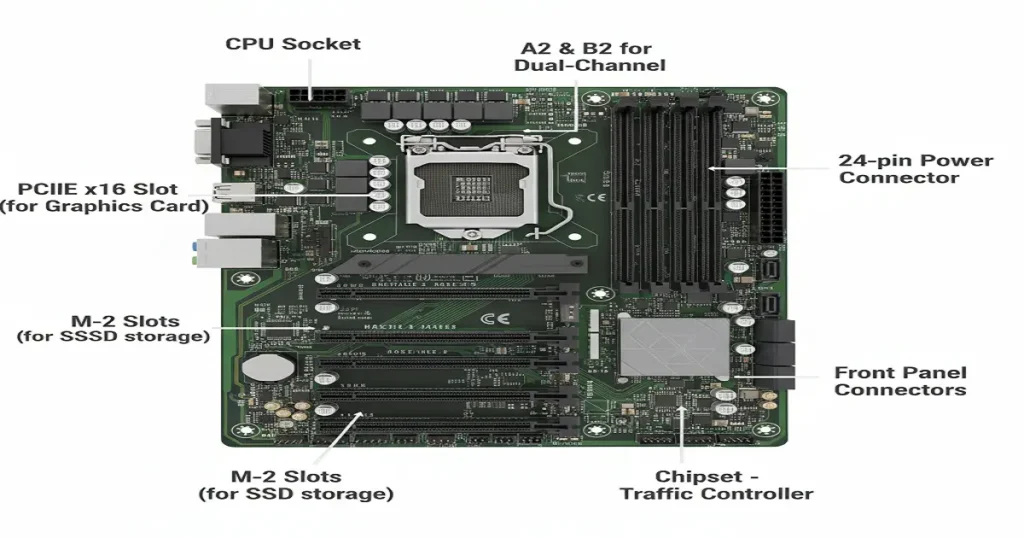
Motherboards are your PC’s main circuit boards that connects EVERY component from your CPU and RAM to your graphics card and storage. Think of it as the foundation of your entire computer system, determining what components you can use and how well they perform together.
Your motherboard serves four critical roles:
- City Planner: Routes data between components via “data highways” (buses)
- Power Grid: Distributes electricity from your PSU to all parts
- Foundation: Determines what you can build and upgrade later
- Brain Coordinator: Manages communication between all components
Real-World Example: When you game, your motherboard ensures your CPU talks to your GPU, loads textures from SSD to RAM, and delivers power where it’s needed – all simultaneously. This coordination happens millions of times per second behind the scenes.
Motherboard Components EXPLAINED (2025-2026 Focus)
Critical Components for Next-Gen Builds
Details of Motherboards functionality
| Component | 2025 Status | 2026 Outlook | Why It Matters TO YOU |
| PCIe 5.0 Slots | Current standard for GPUs/SSDs | PCIe 6.0 ready in 2026 | 2x faster than PCIe 4.0 – cuts game loading times |
| DDR5 RAM Slots | 5600-8000MHz mainstream | DDR6 development underway | Gaming FPS boost + future upgrade path |
| CPU Sockets | AM5 (AMD) / LGA 1700 (Intel) | LGA 1851 coming in 2026 | Determines CPU compatibility + future upgrades |
| M.2 NVMe Slots | PCIe 5.0 (14,000MB/s) | More slots standard | Instant game loading + multiple fast drives |
| AI NPU Connectors | Emerging feature | Standard in 2026 | AI acceleration for apps/games |
Power Delivery Evolution
Modern motherboards feature sophisticated VRM (Voltage Regulator Module) systems that have evolved significantly. High-end boards now boast 16+2 phase power designs with 90A power stages, ensuring stable electricity delivery even during extreme overclocking sessions.
The power delivery system has become increasingly important with high-core-count CPUs. Premium motherboards include reinforced PCIe 5.0 slots capable of delivering up to 600W to next-generation graphics cards, along with dedicated power connectors for PCIe 5.0 SSDs.
Cooling Solutions Advancement
Motherboard cooling has transformed from simple aluminum heatsinks to advanced thermal solutions. High-end models now feature extended heatsinks with heat pipes, direct-touch heat pipes for VRM cooling, and even active cooling fans for PCIe 5.0 M.2 slots.
The thermal design of modern motherboards addresses the increased heat output from PCIe 5.0 components. Many premium boards include thermal sensors throughout the PCB and offer sophisticated fan control software that adjusts cooling based on real-time component temperatures.
🎯 2026 PRO TIP: Choose motherboards with PCIe 5.0 x16 slots and DDR5-6000+ support to stay relevant through 2026. Look for models with at least two PCIe 5.0 M.2 slots and robust VRM cooling.
How Motherboards Actually Work (Step-by-Step)
The Detailed Boot Process
The 30-Second Boot Process begins when you press the power button. Electricity flows from your PSU through the 24-pin ATX connector, awakening the motherboard’s power circuitry. The standby power circuit activates first, providing minimal power to essential components.
BIOS/UEFI Wake-up follows as the firmware initializes. Modern UEFI firmware performs a comprehensive Power-On Self-Test (POST), checking CPU functionality, memory integrity, storage detection, and peripheral connectivity. This process has become more sophisticated with each generation.
CPU Activation sees the processor taking control from the firmware. The CPU initializes its cores and cache, then begins executing instructions from the UEFI firmware. Modern processors handle this initialization much faster than older models, contributing to quicker boot times.
Memory and Storage Initialization
RAM Initialization involves the memory controller training the memory modules. This process determines optimal timings and voltages for your specific RAM kit. DDR5 memory includes on-die ECC and power management, adding complexity to this initialization phase.
Storage Access begins as the motherboard enumerates all connected storage devices. NVMe drives are initialized through PCIe, while SATA drives communicate through the chipset. The bootloader then loads the operating system kernel into memory from the designated boot drive.
Peripheral Scan completes the process by detecting all connected devices. USB controllers initialize, network interfaces obtain IP addresses, and audio codecs prepare for operation. The system then hands control to the operating system, presenting your login screen.
Ongoing System Management
During operation, the motherboard continuously manages resource allocation. The chipset directs data flow between components, prioritizing traffic based on current tasks. Gaming sees GPU communication prioritized, while file transfers emphasize storage controller bandwidth.
Power management remains active throughout system operation. The motherboard monitors power consumption, adjusting voltages dynamically to balance performance and efficiency. Advanced boards can even shift power between components based on real-time workload demands.
Thermal monitoring occurs continuously via embedded sensors. The motherboard adjusts fan speeds and, in extreme cases, may throttle components to prevent damage. High-end models offer per-component thermal monitoring with customizable response curves.
💡 Real Analogy: Like a concert conductor ensuring every musician starts playing together at the right time, your motherboard coordinates billions of operations per second to create harmonious computing performance.
5 Common Motherboard Problems & INSTANT Fixes
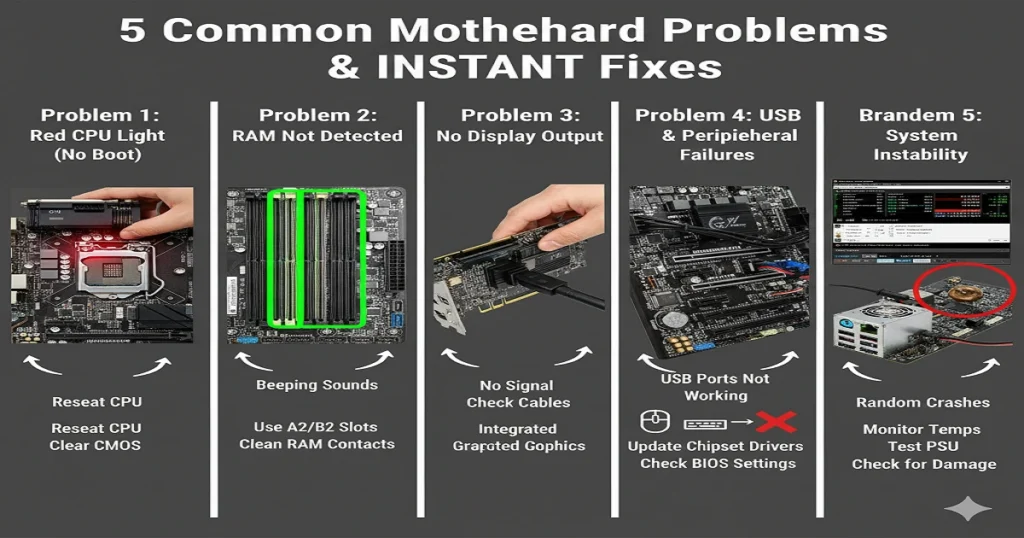
Problem 1: Red CPU Light (No Boot)
Symptoms: PC turns on but no display, red light near CPU, system fans spinning, but no POST beep
Detailed 30-Second Fix:
- Power off and unplug the PC completely from the wall outlet
- Reseat CPU carefully – remove cooler, unlock socket, inspect for bent pins
- Check CPU compatibility – ensure your processor matches socket requirements
- Clear the CMOS properly by removing the battery for 5 minutes or using jumper pins
- Inspect the CPU socket for thermal paste contamination or physical damage
Advanced Troubleshooting: If basic steps fail, test with a known working CPU if available. Update BIOS using the USB Flashback feature if your motherboard supports it. Check for CPU power connector issues – both 8-pin and 4-pin must be securely connected.
Problem 2: RAM Not Detected
Symptoms: Beeping sounds, RAM error on screen, system failing to POST, memory not recognized in BIOS
Comprehensive Quick Solution:
- Test one RAM stick at a time in each slot to identify faulty modules
- Use slots A2/B2 first, as most motherboards prioritize these for dual-channel
- Clean RAM contacts with isopropyl alcohol and a soft cloth
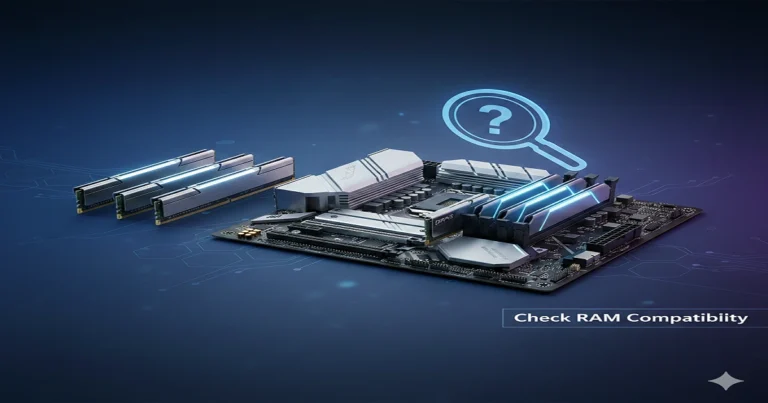
- Update BIOS to the latest version – improved memory compatibility is common
- Adjust XMP/EXPO settings – sometimes manual timing adjustment helps
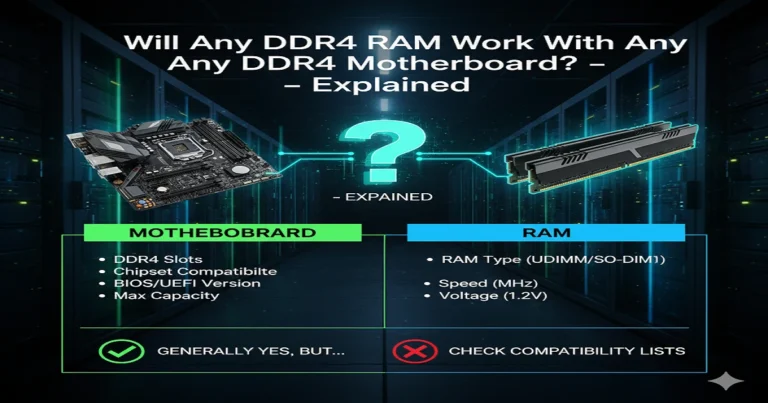
- Check QVL list – ensure your RAM is officially supported
Memory Training Issues: DDR5 memory requires more extensive training. If the system hangs during memory initialization, try increasing boot voltage slightly or relaxing primary timings temporarily until stable.
Problem 3: No Display Output
Symptoms: Fans spin but no image on screen, no signal message, system seems to boot, but no display
Detailed Immediate Actions:
- Try different display cables – HDMI, DisplayPort, test each thoroughly
- Test with integrated graphics – remove the discrete GPU completely
- Reset the graphics card in the PCIe slot and ensure the power connectors are secure
- Check the monitor input source and try different monitors if available
- Listen for POST beeps – different beep patterns indicate specific issues
- Inspect the PCIe slot for physical damage or debris
Advanced Display Troubleshooting: If using a discrete GPU, test it in another system. Check for PCIe slot compatibility issues – some boards require specific slots for the primary GPU. Update GPU firmware if available.
Problem 4: USB and Peripheral Failures
Symptoms: Some or all USB ports not working, peripherals disconnecting randomly, device detection issues
Comprehensive Solutions:
- Update chipset drivers from the motherboard manufacturer’s website
- Check BIOS USB settings – enable XHCI Handoff and legacy support if needed
- Inspect physical ports for damage or bent pins
- Test different USB modes – USB 2.0, USB 3.0, and USB-C separately
- Check Windows power management settings for USB selective suspend
- Update BIOS – USB compatibility improvements are common in updates
Problem 5: Random System Instability
Symptoms: Random crashes, blue screens, system freezes, unexpected reboots during use
Advanced Troubleshooting Steps:
- Monitor temperatures using HWInfo or similar tools
- Test the power supply with a multimeter or a replacement unit
- Update all drivers – chipset, audio, network, storage controllers
- Check the event viewer for specific error codes
- Test with minimal configuration – one RAM stick, integrated graphics
- Inspect capacitors for bulging or leakage
- Reset BIOS to optimized defaults and reconfigure carefully
🚨 EMERGENCY FIX: If you spill liquid on the motherboard, immediately power off, remove the battery, disconnect all power, and use 99% isopropyl alcohol to clean. Do not attempt to power on until completely dry – 48 hours minimum.
Gaming vs Office vs Budget: Which Motherboard FITS You?
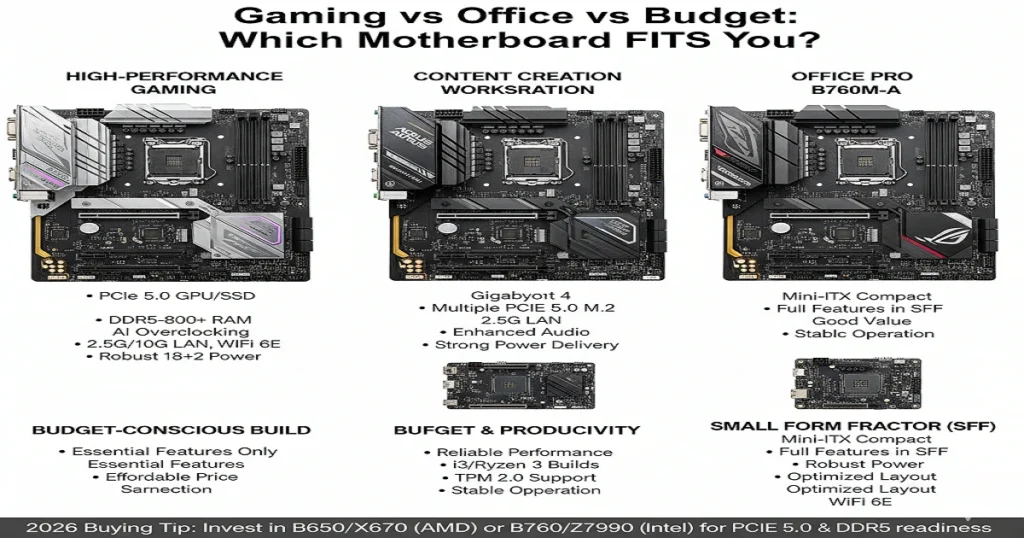
High-Performance Gaming Systems
Best Choice: ASUS ROG X670E series ($400-600)
Why It Dominates: PCIe 5.0 x16 for RTX 5090 support, DDR5-8000+ memory compatibility, advanced AI overclocking features, multiple PCIe 5.0 M.2 slots, robust 18+2 phase power delivery, and comprehensive cooling solutions.
Gaming-Specific Features: Premium gaming motherboards offer dedicated gaming ports, low-latency networking, enhanced audio codecs with shielding, and RGB lighting integration. Look for features like WiFi 6E, 2.5G/10G Ethernet, and front-panel USB-C support.
Overclocking Capabilities: High-end gaming boards provide extensive tuning options. Voltage monitoring points, BIOS flashback buttons, and dedicated overclocking profiles help maximize performance. Advanced cooling for VRMs ensures stability during extended gaming sessions.
Content Creation Workstations
Optimal Choice: Gigabyte B650 AORUS ($250-350)
Content Creation Advantages: Multiple M.2 slots for fast storage arrays, 2.5G LAN for large file transfers, abundant USB connectivity including Thunderbolt 4, excellent power delivery for multi-threaded workloads, and enhanced audio quality.
Storage Considerations: Content creators should prioritize motherboards with multiple PCIe 4.0/5.0 M.2 slots. Look for models with heatsinks on all M.2 slots and consider boards offering PCIe slot bifurcation for additional storage expansion.
Connectivity Needs: Multiple display outputs, 10G Ethernet options, and abundant USB ports become crucial. Thunderbolt 4 support enables fast peripheral connectivity and high-speed storage solutions essential for video editing and 3D rendering workflows.
Office and Productivity Systems
Smart Choice: MSI PRO B760M-A ($120-180)
Office Optimization: Reliable power delivery for consistent performance, basic feature set without unnecessary extras, excellent value proposition, stable operation for business environments, and long-term reliability.
Business Features: Office motherboards should emphasize stability over cutting-edge features. Look for proven reliability, good warranty support, basic connectivity that meets business needs, and compatibility with standard business peripherals and software.
Future-Proofing Considerations: While cutting-edge features aren’t essential, ensure the motherboard supports current security standards like TPM 2.0 and will receive BIOS updates for future processor compatibility within the same socket.
Budget-Conscious Builds
Value Choice: ASRock B660M-HDV ($80-110)
Budget Advantages: Essential features only without unnecessary premium extras, perfect for i3/Ryzen 3 builds, reliable performance for basic computing needs, and good upgrade potential within the platform.
Cost-Saving Strategies: Budget builders should focus on motherboards that meet current needs without paying for unused features. Consider the Micro-ATX form factor for case savings and prioritize reliable brands with good customer support.
Smart Compromises: While cutting corners on some features, ensure the budget motherboard still has adequate power delivery for your chosen CPU, sufficient RAM slots for future upgrades, and necessary connectivity for your peripherals.
Small Form Factor (SFF) Enthusiasts
Compact Powerhouse: ASUS ROG STRIX B650E-I ($300-400)
SFF Advantages: Mini-ITX form factor with full features, optimized component layout for small cases, robust power delivery despite size constraints, and clever cooling solutions for limited airflow environments.
Space Optimization: SFF motherboards maximize every square millimeter. Look for front and rear M.2 slots, angled SATA connectors, cleverly positioned headers, and integrated I/O shields to save space.
Thermal Management: Small cases demand excellent thermal design. Premium SFF motherboards include comprehensive heatsink coverage, smart fan headers, and voltage regulation designed for efficient operation in confined spaces.
🎯 2026 Buying Tip: Invest in B650/X670 (AMD) or B760/Z790 (Intel) chipsets for best 2026 compatibility. These platforms offer PCIe 5.0 support, DDR5 compatibility, and ongoing BIOS updates for next-generation processors.
2026 Technology Preview: Future-Proof Your Build
PCIe 6.0 Implementation
Current Status: PCIe 5.0 is establishing itself in 2024-2025 with double the bandwidth of PCIe 4.0. Graphics cards and SSDs are beginning to utilize this increased bandwidth, though widespread adoption is still progressing.
2026 Outlook: PCIe 6.0 specification is complete, offering another doubling of bandwidth to 256 GT/s. Early implementations may appear in enterprise hardware, with consumer products following. Motherboards designed today should have PCIe 6.0 readiness in mind.
Real-World Impact: PCIe 6.0 will enable even faster storage solutions and more powerful graphics cards. The technology uses PAM-4 signaling and improved encoding for greater efficiency, though it may initially come with higher power requirements and thermal challenges.
DDR6 Memory Transition
Development Timeline: DDR6 specification development is underway, with first samples expected in 2024-2025. Mass production and consumer availability will likely begin in 2026-2027, following the typical memory technology adoption curve.
Performance Expectations: Early specifications suggest DDR6 will start at 12,800 MT/s, effectively doubling DDR5’s initial speeds. The technology will feature improved power efficiency and higher densities per module, enabling larger capacity kits.
Compatibility Considerations: DDR6 will require new memory controllers and physical slots. However, motherboard manufacturers may include both DDR5 and DDR6 support during the transition period, similar to previous generational shifts.
AI Integration Acceleration
NPU Standardization: Neural Processing Units are becoming standard features on modern processors. By 2026, expect NPUs to be integrated directly into motherboard chipsets, handling AI workloads independently from the main CPU.
Software Ecosystem: As Windows and major applications increasingly leverage AI capabilities, motherboards with dedicated AI processors will offer significant advantages in tasks like voice recognition, image processing, and predictive performance optimization.
Motherboard AI Features: Future motherboards may include AI-optimized power delivery that learns your usage patterns, intelligent cooling control that anticipates thermal loads, and automated performance tuning based on application detection.
Windows 12 Readiness
Security Requirements: Windows 12 is expected to build upon Windows 11’s security mandates. TPM 2.0+ will remain essential, with possible additional security processor requirements for certain enterprise features.
AI Integration: Microsoft is heavily investing in AI features for future Windows versions. Motherboards with NPU support and AI acceleration capabilities will likely see better performance and compatibility with upcoming Windows 12 features.
Firmware Expectations: UEFI firmware will continue evolving with richer interfaces, better hardware management, and enhanced security features. Motherboards with flashable BIOS and good manufacturer update support will remain relevant longer.
Connectivity Evolution
Networking Advances: Wi-Fi 7 adoption will become mainstream by 2026, offering multi-band operation and lower latency. 10G Ethernet may become standard on mid-range boards, with 25G/40G options appearing on premium models.
USB4 Proliferation: USB4 with Thunderbolt compatibility will become commonplace, offering 40Gbps speeds and versatile connectivity. Look for motherboards with multiple USB4 ports and robust power delivery for connected devices.
Wireless Charging Integration: Some premium motherboards may begin integrating wireless charging surfaces for phones and peripherals, reducing cable clutter and enhancing convenience.
Your 2026-Ready Checklist:
- PCIe 5.0 support (for next-gen GPUs and storage)
- DDR5 compatibility (at least 6000MHz for future-proofing)
- Multiple M.2 slots (PCIe 5.0 preferred for storage expansion)
- 2.5G/10G Ethernet (faster internet ready for cloud gaming)
- Wi-Fi 6E/7 (wireless future-proofing for VR/AR applications)
- USB4/Thunderbolt 4 (fastest peripherals and displays)
- AI acceleration support (NPU compatibility for future software)
- Robust power delivery
FAQs:
What is a motherboard in a computer?
It’s the main circuit board that connects all the parts of your computer. Think of it as the body’s nervous system, letting the CPU, RAM, and storage talk to each other.
What is a motherboard short definition?
A motherboard is your computer’s central hub where every component connects and communicates.
What happens if your motherboard is broken?
Your computer won’t turn on or start up properly. It can prevent all other parts, like your CPU or RAM, from working.
What is the difference between a motherboard and a CPU?
The motherboard is the body that connects everything, while the CPU is the brain that does the actual thinking and calculations.
Conclusion:
So, remember this: your motherboard is the true foundation of your computer. Choosing a modern one with PCIe 5.0, DDR5, and great power delivery isn’t just about today—it’s your ticket to enjoying AI PCs and next-gen gaming in 2026. You’ve now built the knowledge to pick the perfect board. Use our 2026-ready checklist, make your choice with confidence, and build a PC that won’t let you down. Happy building